
Most Windows PCs don't have a built-in translation workflow as broad as the one in macOS, so what you install matters more. On a Copilot+ PC in a supported region, Click to Do can hand selected on-screen text to Copilot for translation, but that exception is limited by hardware and region. This guide compares eight translation apps and tools for Windows on price, workflow, and what each is good at.
It also covers the jobs people use them for: writing a message in a language you barely speak, checking it before you hit send, reading foreign-language articles and PDFs, and pulling text out of images and game screens.
Quick recommendations by use case
- Translate selected text anywhere in Windows: DeepL, Nani, or Lingvanex
- Write emails and messages in another language: Nani, ChatGPT, or Claude
- Proofread a message before sending it: Nani or DeepL
- Read foreign-language web pages and PDFs: Immersive Translate or Microsoft Edge
- Spend nothing: Microsoft Edge, Google Translate, or Immersive Translate
- Translate screenshots and text in images: DeepL, Nani, or Lingvanex
- Work offline: Lingvanex
- Translate PC games and visual novels: LunaTranslator
- Keep your input out of AI training: Nani, DeepL Pro, or Immersive Translate
They're grouped by what they're for rather than ranked best to worst. Pricing and free limits change often, so check the official page before you pay for anything.
Comparison table
| App or tool | Price | Select-to-translate | Proofreading | Web pages / docs | Images / OCR | Offline | Best for |
|---|---|---|---|---|---|---|---|
| DeepL | Free / Pro subscription | Any app | Yes | Yes (files) | Yes | No | Fast, polished translation |
| Nani | Free / from $8/mo | Any app | Yes | Yes (pages) | Yes | No | Options with notes on nuance |
| Microsoft Edge | Free | Browser only | In text fields | Yes (pages) | No | No | Whole-page translation |
| Lingvanex | Free / paid features | Any app | No | Yes | Yes | Yes (45 languages) | Offline, voice, and file translation |
| Google Translate | Free | Browser only | No | Yes (pages) | Yes | No | Broad language support |
| Immersive Translate | Free / Pro subscription | Browser only | No | Yes | Pro only | No | Bilingual web page and PDF reading |
| LunaTranslator | Free and open source | No | No | No | Yes | Yes (with setup) | Continuous in-game text translation |
| ChatGPT / Claude | Free / from $20/mo | No | Yes (on request) | Files only | Yes | No | Translation with detailed instructions |
Is your input used for AI training?
Sending text to a server isn't the same thing as that text being used to train an AI model. The two get conflated constantly. Here's what each provider's own documentation says about consumer plans.
| App or tool | Use for training or service improvement | Notes |
|---|---|---|
| DeepL | Yes on Free, no on Pro | Free input and translations may be used to improve DeepL's models. On Pro, text is deleted after translation and not reused |
| Nani | No on both Free and Pro | Neither Nani nor its AI providers use input or translations for model training |
| Microsoft Edge | Depends on your Microsoft settings and terms | Page content is sent to Microsoft's servers. On a work machine, your employer's policy applies too |
| Lingvanex | No explicit exclusion | The online PC app caches input and translated text, and deletes uploaded files within 24–72 hours. The policy doesn't separately exclude training use |
| Google Translate | No clear exclusion for the free service | Google talks about using data to improve its services, but doesn't spell out whether Translate input is used for training |
| Immersive Translate | No for its standard service | If you plug in your own API key, the policy of that provider applies instead |
| LunaTranslator | Depends on the engine you pick | An offline engine keeps everything local. Choose Google or ChatGPT and your text goes to them |
| ChatGPT | Yes on consumer plans unless you opt out | Turn off "Improve the model for everyone" and new chats are excluded |
| Claude | Yes on Free and paid consumer plans if you opt in | Only chats you've allowed to be used for model improvement, with an exception for conversations flagged for safety review |
Based on official information available in July 2026. Business plans and APIs may handle data differently.
How to choose a translation app for Windows
Does it still support Windows 10?
Windows 10 reached end of support in October 2025, and plenty of people are still on it. DeepL, Lingvanex, ChatGPT, and Claude all run on Windows 10. Nani's desktop app recommends Windows 11 or later.
Requirements vary more than you'd expect, even between apps built for the same OS. The download page lists them, so check it before you install.
Are you reading or writing?
Machine translation tools like DeepL and Google Translate give you an answer almost instantly. If you just need the gist of something written in another language, that's usually enough.
Tools built on large language models can account for context and shift the tone to something more formal or more casual, and they can explain why they chose a particular word when you ask. They're slower, but that trade is worth it when someone else is going to read what you wrote.
Translating or proofreading?
Translation moves text from one language to another. Proofreading keeps the language the same and fixes typos, grammar, awkward phrasing, and tone.
If you want to know whether your message reads as rude before you send it, that's a proofreading job. Nani, DeepL Write, and the AI chats all handle it.
What are you translating?
- Text you select in any app
- Web pages, PDFs, and Word files
- Screenshots and text in images
- Emails and messages you're writing
- Emails and messages you've already written
- Dialogue that keeps appearing on a game screen
These tools specialize more than the marketing suggests. If you read PDFs all day, LunaTranslator does nothing for you. If you only read foreign-language websites, Edge's built-in translation covers it and you can skip installing anything.
Can you trigger it with a shortcut?
If you translate several times a day, the difference between "select text, press a key" and "open app, paste, switch back" adds up fast. DeepL translates with Ctrl+C pressed twice and opens its rewriting tool with Ctrl+Windows+C. Nani lets you assign separate shortcuts for translating and for proofreading.
If your work happens in a browser anyway, a browser extension or the built-in translation in Edge and Chrome is quicker than any desktop app.
Check what "offline" actually covers
Apps that advertise offline support rarely run everything on your device. Text translation might work offline while image OCR and voice need a connection. Of the eight tools here, only Lingvanex and LunaTranslator do offline translation at all, and both support fewer languages offline than online.
DeepL
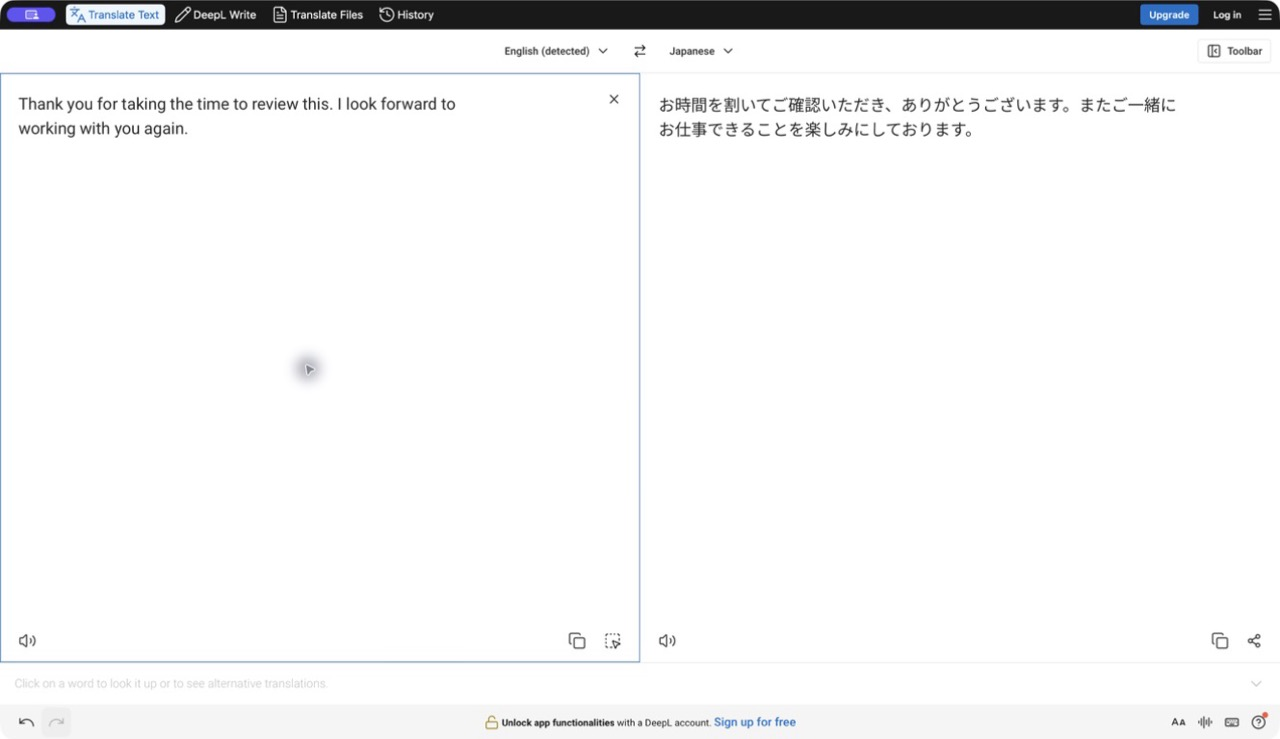
Free plan / Pro subscription / Windows 10 (64-bit) or later
The default choice for most people on Windows. It handles polished, business-style writing consistently, and results come back fast.
In the Windows app, select text in any other app and press Ctrl+C twice to translate it. Press Ctrl+Windows+C instead and DeepL Write opens to proofread and rewrite what you selected. Both shortcuts can be remapped in settings.
What DeepL does well
- Consistent results for polished and business-style writing
- Tapping
Ctrl+Ctwice translates whatever you've selected - DeepL Write proofreads and rewrites in several languages, including on the free plan
Ctrl+Windows+Cproofreads text selected in any other app- Screenshot translation for any region of your screen
- File translation for Word, PowerPoint, and PDF
Where DeepL falls short
- The free tier has character and document limits, and they change often
- With long texts it sometimes drops entire sentences without saying so. Check anything important against the original
- No bilingual side-by-side view for web pages
- Doesn't work offline
- Free-plan input may be used to improve the service
Since it still supports Windows 10, it's the obvious pick for a machine that can't move to 11. If you handle confidential documents at work, read DeepL Pro's data protection terms before you put anything into the free version.
Nani
Free plan / Pro from $8 per month / Windows 11 or later + Web
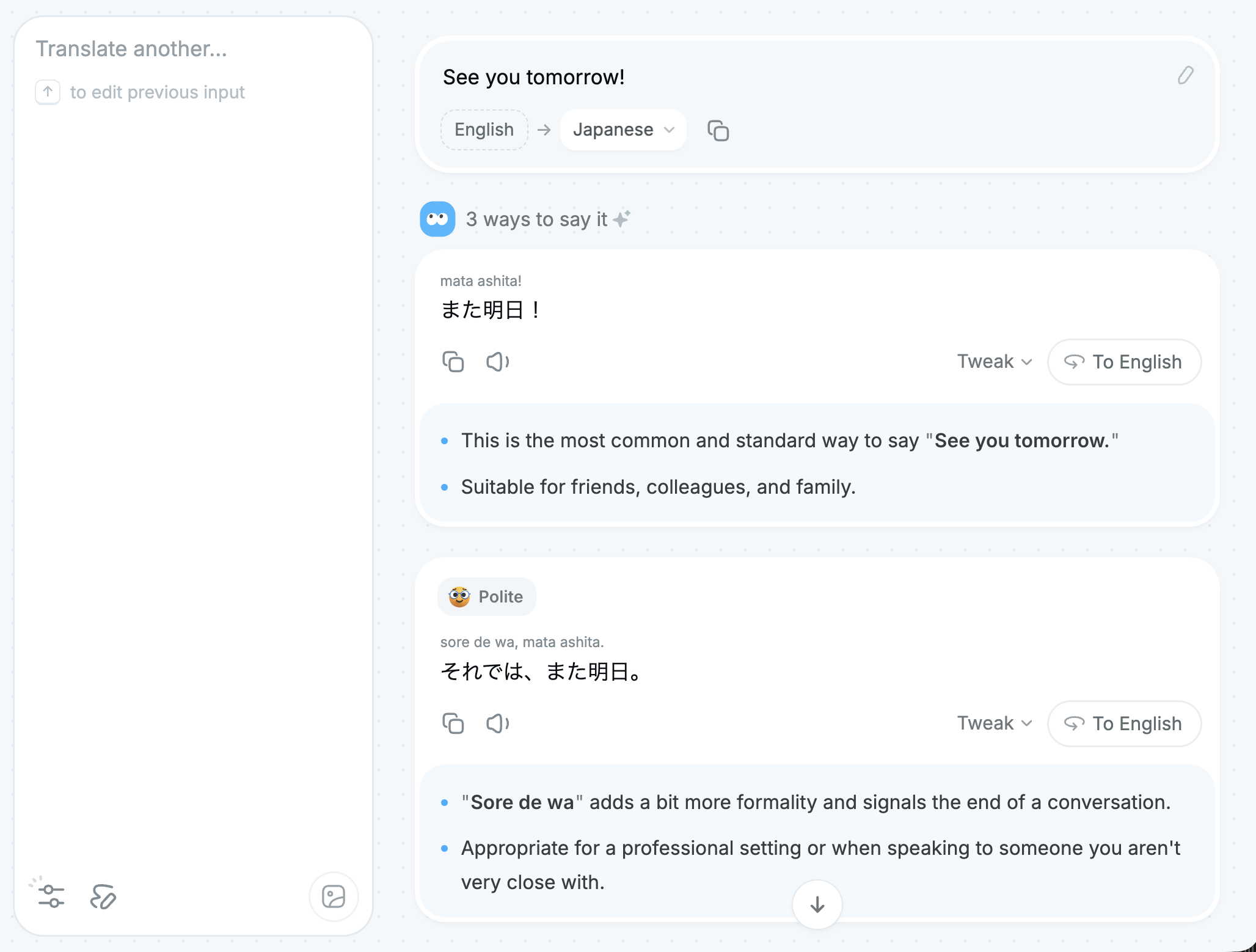
Nani is the AI translation app we make. It's built for the writing side as much as the reading side: translating a message you're about to send, then checking it before it goes out.
Instead of returning one translation, it shows several phrasings with a short note on the nuance of each. The proofreading mode keeps your text in its original language and checks typos, grammar, awkward wording, and tone.
In the Windows app you select text in any app and trigger translation or proofreading with a shortcut you set. So after writing an email, you can check it where you wrote it instead of copying it into another window.
When you're staring at a sentence wondering whether it sounds off, translation gives you tone variants plus a back-translation, and proofreading gives you an assessment of the whole message with the reasoning behind each edit. You can also push the result more casual or more neutral afterward, or run your own rewrite through it again.
What Nani does well
- Suggests multiple translations with notes on nuance and tone
- One-tap back-translation, so you can check what your translated text actually says
- Checks grammar and typos, plus how natural and how polite the writing sounds
- Shows proofreading edits as a diff, with the reason for each change and alternative wording
- Select text anywhere and translate or proofread it with a shortcut
- Adjusts the tone after proofreading, and re-checks text you edited yourself
- Image translation, screenshot translation, and web page translation from a URL
- Lets you write a reply directly from a translation result
- Translation history is stored on your device, not on a server
- Input and translation results are not used to train AI models on either Free or Pro
Where Nani falls short
- The desktop app recommends Windows 11 or later
- Long texts take longer than machine translation
- The free plan caps how much text you can proofread at once
- Screenshot translation is Pro and Team only
- Doesn't work offline
- Can't translate PDFs or Word files while preserving their layout
The free plan handles up to 4,000 characters per translation and doesn't expire. Pro is $10 per month, or $8 per month billed annually, and adds higher-accuracy models and texts up to 100,000 characters.
Microsoft Edge page translation

Completely free / Built into Microsoft Edge
Edge covers a fair amount of ground for anyone who would rather not install anything. Its translation feature spots a foreign-language page on its own and translates the whole thing from the address bar. If you only need one paragraph, select it, right-click, and translate just that. There's also a setting to translate a particular language every time, so it stops asking.
Edge also includes Microsoft Editor for spelling and grammar as you type, and the Copilot rewrite option in the right-click menu of a text box can adjust length and tone. Depending on your Edge version and whether you're signed in, that menu item may not appear. Both only work while you're writing inside Edge.
What Edge does well
- No cost, no install
- Detects foreign-language pages automatically
- Translates a full page in one click
- Right-click selected text and it translates just that
- Spell check, grammar check, and rewriting in Edge text fields
Where Edge falls short
- Not much use outside the browser
- No system-wide shortcut for translating selected text
- No side-by-side view of the original and the translation
- Page translations come with no tone control or explanation
One warning: the old Microsoft Translator app for Windows was retired in April 2021. Search for it and you'll still find unofficial apps using the same name. Don't install those thinking they're from Microsoft.
Lingvanex
Free plan / Paid features / Windows 7 or later
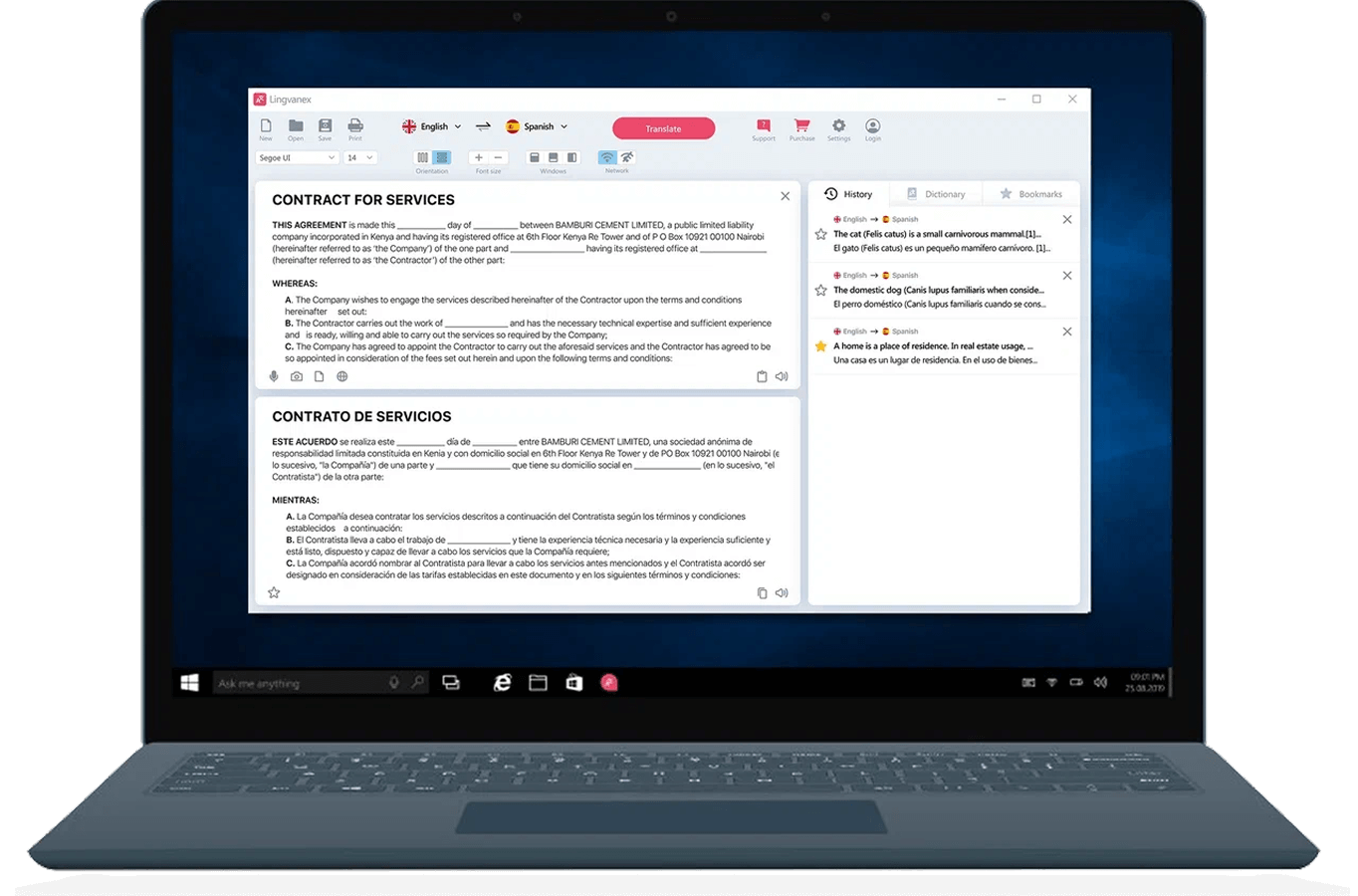
Lingvanex packs text, voice, images, web pages, PDFs, and Word files into a single app. It also does the Ctrl+C twice trick for translating selected text.
The reason to pick it is offline translation. Lingvanex says it supports over 100 languages online and 45 offline. Fewer languages and fewer file formats work offline than online, so check that yours is on the list before you count on it.
What Lingvanex does well
- Text, images, voice, web pages, and files in a single app
- Offline translation for a subset of languages
- Press
Ctrl+Ctwice to translate text selected in another app - Runs on everything from Windows 7 to 11
Where Lingvanex falls short
- Offline doesn't mean every language or every feature
- For plain text translation, DeepL is simpler to understand
- Even the official site is vague in places about what's free and what isn't
- The current privacy policy doesn't explicitly exclude online translation data from model training
- Smaller community, so less to go on when something breaks
If offline is your reason for being here, install the free version, download a language pack, and check the quality yourself. Better yet, turn off Wi-Fi and confirm it works before you rely on it.
Google Translate
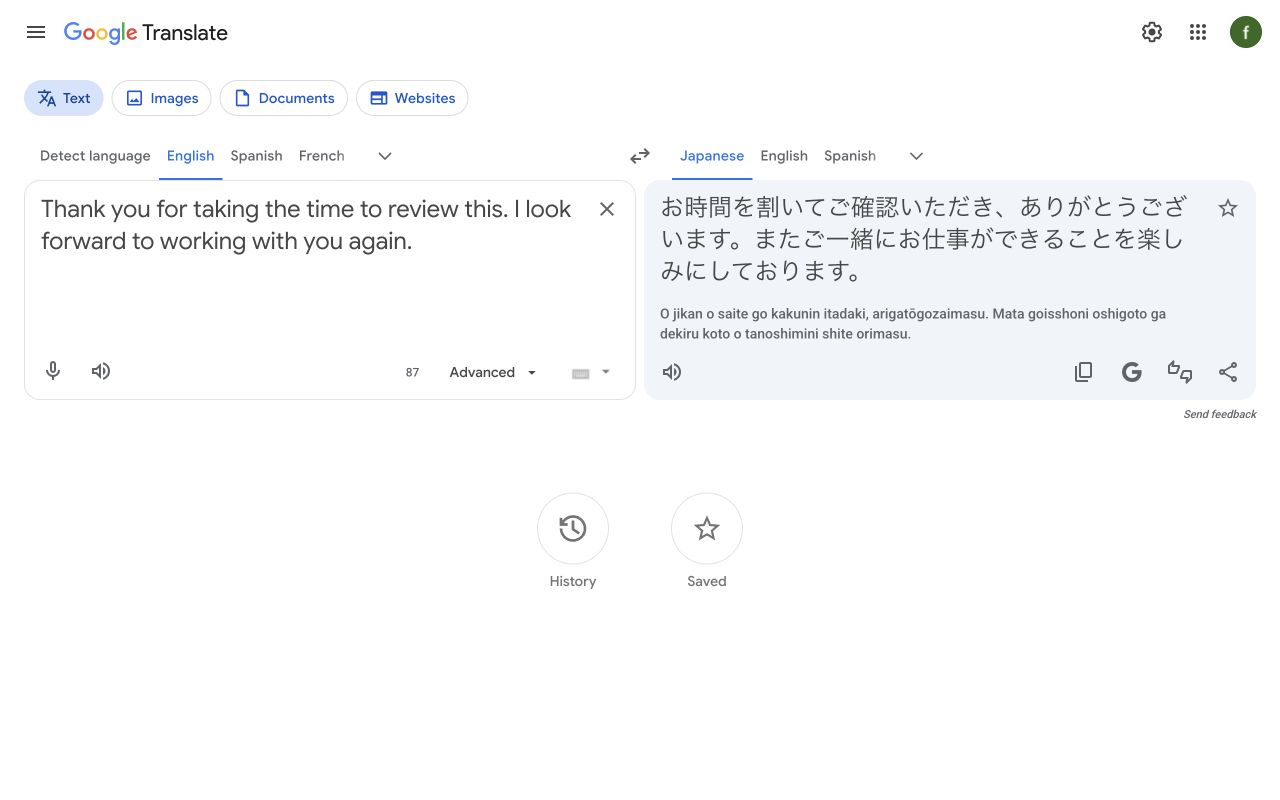
Completely free / Web + Chrome built-in translation
There's no official Windows app. On Windows you use translate.google.com or Chrome's built-in page translation.
What Google Translate does well
- Over 240 languages, including many with little support anywhere else
- In Chrome, right-click to translate a whole page or just a selection
- Upload an image and it translates the text inside
- Nothing to install, so it works on any Windows PC you sit down at
Where Google Translate falls short
- No official Windows app
- No system-wide shortcut for translating selected text in other apps
- Output reads stiffer and more literal than DeepL or the LLM-based tools
- Hard to find a clear statement that your input isn't used for training
Nothing beats it on language coverage. The translations are more literal than what you get elsewhere, so treat it as the tool you reach for when nothing else supports the language you're dealing with.
Immersive Translate
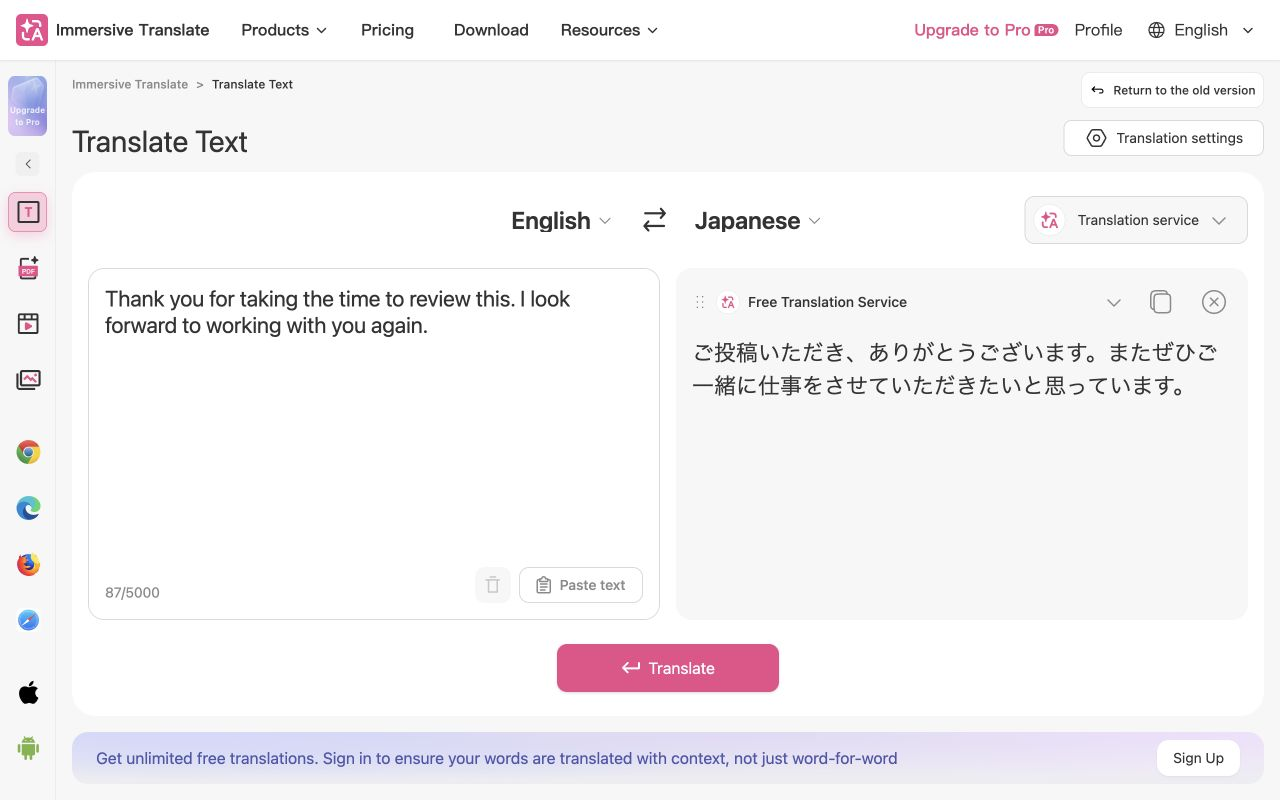
Free plan / Pro subscription / Edge, Chrome, and Firefox extension
Immersive Translate is a browser extension built around bilingual reading. Translate a page and the translation is inserted below each original paragraph, so when something reads strangely you can glance at the source without leaving the page.
It handles PDFs, EPUBs, and YouTube subtitles as well as normal pages. Free PDF translation works on regular text-based PDFs. Scanned documents and complicated multi-column layouts need PDF Pro.
What Immersive Translate does well
- Original and translation side by side
- Works on PDFs, EPUBs, and YouTube subtitles as well as web pages
- Available for Edge, Chrome, and Firefox
- Lets you choose the translation engine
Where Immersive Translate falls short
- Lots of settings, so the first hour is confusing
- The free plan has a daily request cap
- Better models, scanned PDFs, and image translation are mostly paid
- With your own API key, that provider's pricing and data policy apply
The more foreign-language articles, docs, and papers you read, the better it gets.
LunaTranslator
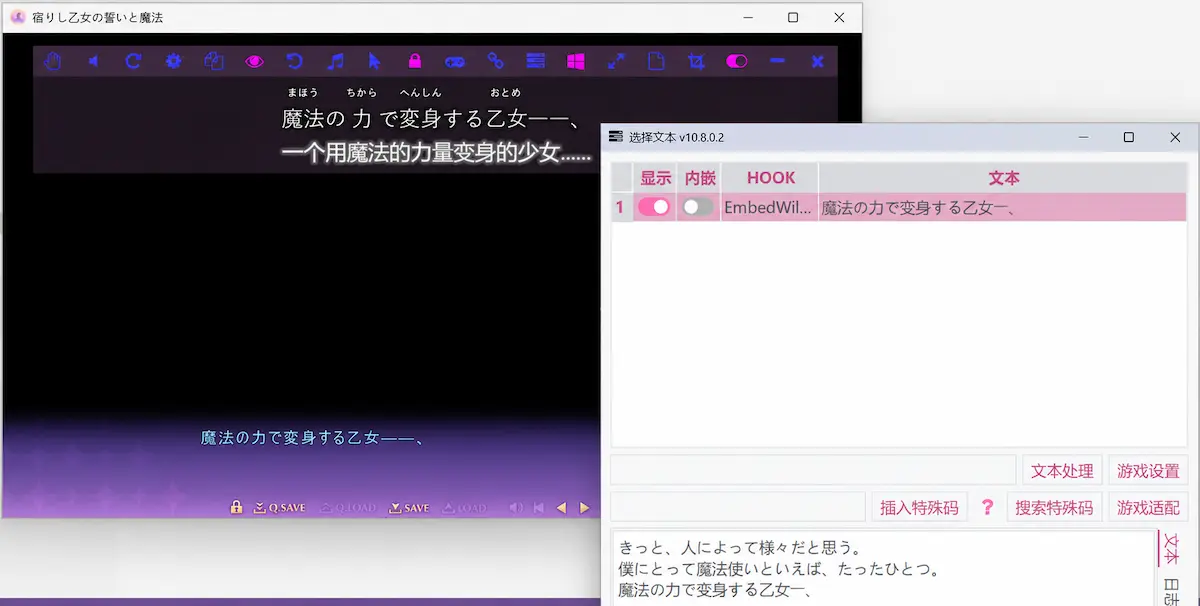
Completely free / Open source / Windows only
An open-source app built for PC games, especially visual novels. It pulls text straight out of the game with a text hook, reads text off the screen with OCR, and watches a region so it keeps translating as the dialogue advances.
You can mix and match engines: Google, DeepL, various LLMs, and offline models. It also does Japanese word segmentation and furigana and connects to AnkiConnect and Yomitan, which matters if you're learning Japanese and playing untranslated games. Setup is the hard part. Once it works, you can leave it alone.
What LunaTranslator does well
- Continuously captures and translates in-game dialogue
- Supports both direct text extraction and OCR
- Works with many engines, online and offline
- Japanese furigana, word segmentation, and dictionary and Anki integration
- Free, open source, and updated frequently
Where LunaTranslator falls short
- Overkill for translating an email or a web page
- Setup is genuinely difficult, and some games need per-game tweaking
- Documentation exists in English, but much of the community discussion is in Chinese
- Some online engines need an API key or cost money separately
Translating and proofreading with ChatGPT or Claude
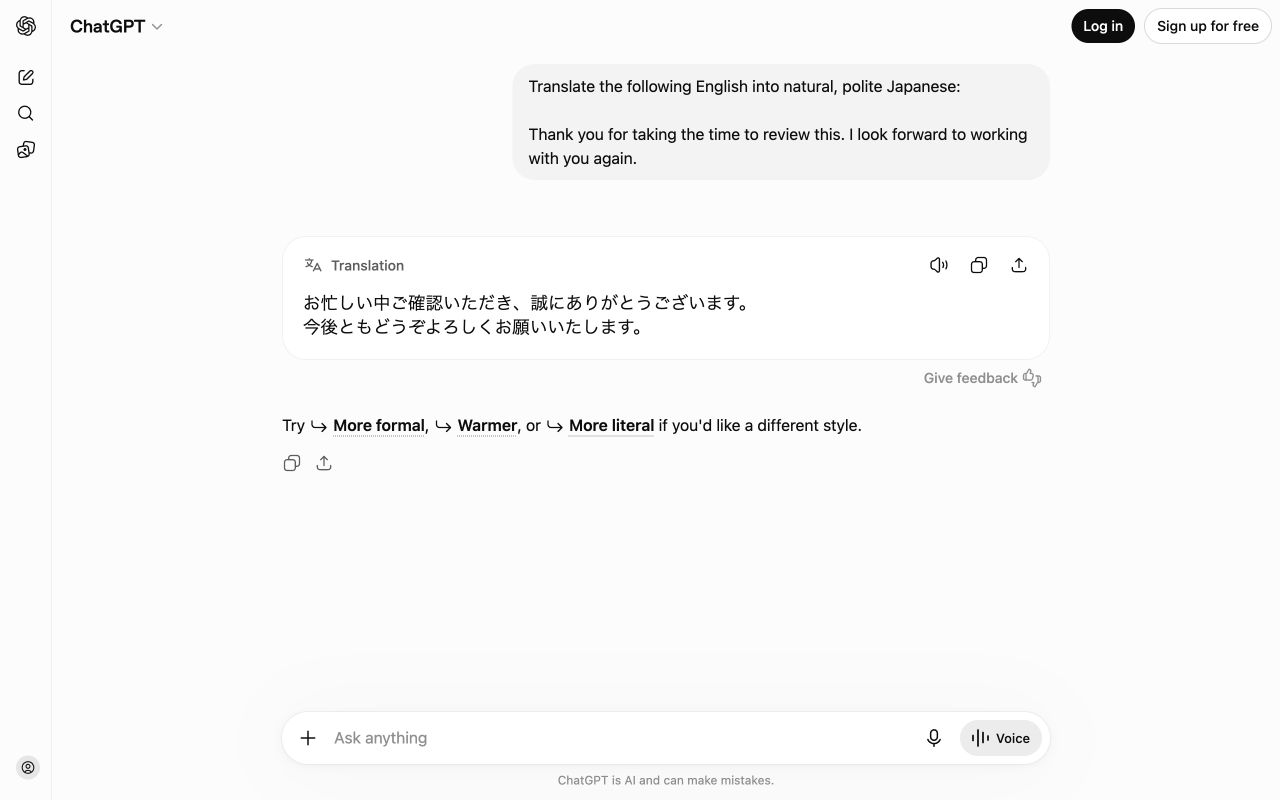
Free plan / Paid from around $20 per month / Windows 10 or later
Plenty of people now do all their translation in a chat window. Both have Windows apps, and both accept images and documents.
The ChatGPT Windows app opens a small companion window with Alt + Space while it's running. Claude Desktop supports Windows 10 and up.
What AI chatbots do well
- You can specify any context you want: "as an apology email to a client", "in the style of a medical paper"
- You can push back on a translation and refine it in conversation
- It'll proofread, rewrite, and adjust tone without changing the language
- Hand it an image, PDF, or Word file and it translates with the surrounding context in mind
- It keeps going after the translation: summaries, replies, explanations of terms
Where AI chatbots fall short
- No dedicated flow, so you type "proofread this" every single time
- It sometimes adds information that wasn't in the original, so faithful translation needs checking
- More steps than an app that translates selected text with one keystroke
- On consumer plans, you have to check the training data setting yourself
They shine when the context is complicated, and drag when you just need to know what a sentence says or want the same proofreading pass before every message. Keep DeepL or Nani around if you do either of those often.
A few more options
- Pot: Free and open source, with select-to-translate, side-by-side results from multiple engines, and screenshot OCR. Capable, but it hasn't been updated in a while, which is why it's not in the main eight
- Crow Translate: A lightweight select-to-translate and OCR app. Also updated infrequently, so check the maintenance situation before committing to it
- Grammarly: A writing assistant that suggests grammar, spelling, and phrasing fixes as you type in supported Windows apps. It supports some non-English checking, and paid plans include translation. More of a continuous editing tool than a translator
- PowerToys Advanced Paste: Press
Windows + Shift + Vto translate the clipboard with AI and paste the result. It needs an API key or a local model, so it's for people already running PowerToys
Which app for which job
-
You write a lot of emails and chat replies in another language
Nani or ChatGPT / Claude. Nani gives you tone variants and back-translation without writing a prompt each time
-
You want to check a message before sending it
Nani or DeepL. Nani explains what it changed and why, DeepL rewrites selected text fast. If you only ever write in the browser, Edge's built-in checks or Grammarly work as you type
-
You read a lot of foreign-language articles and docs
Immersive Translate, plus DeepL or Nani for spot-checking individual sentences
-
You're on Windows 10 and want to translate selected text
DeepL. Easy to install, and
Ctrl+Ctwice is hard to forget -
You want to spend nothing
Edge or Chrome page translation plus Google Translate. Add Immersive Translate when you want to read bilingually and you've covered most light use
-
You want to play games in another language
LunaTranslator. Nothing else here captures and translates game text continuously
Outside the limited Click to Do workflow on supported Copilot+ PCs, Windows still lacks the broad OS-level translation fallback you get on a Mac. Pick your main translation and proofreading app first, then add browser or game translation when you need it.