
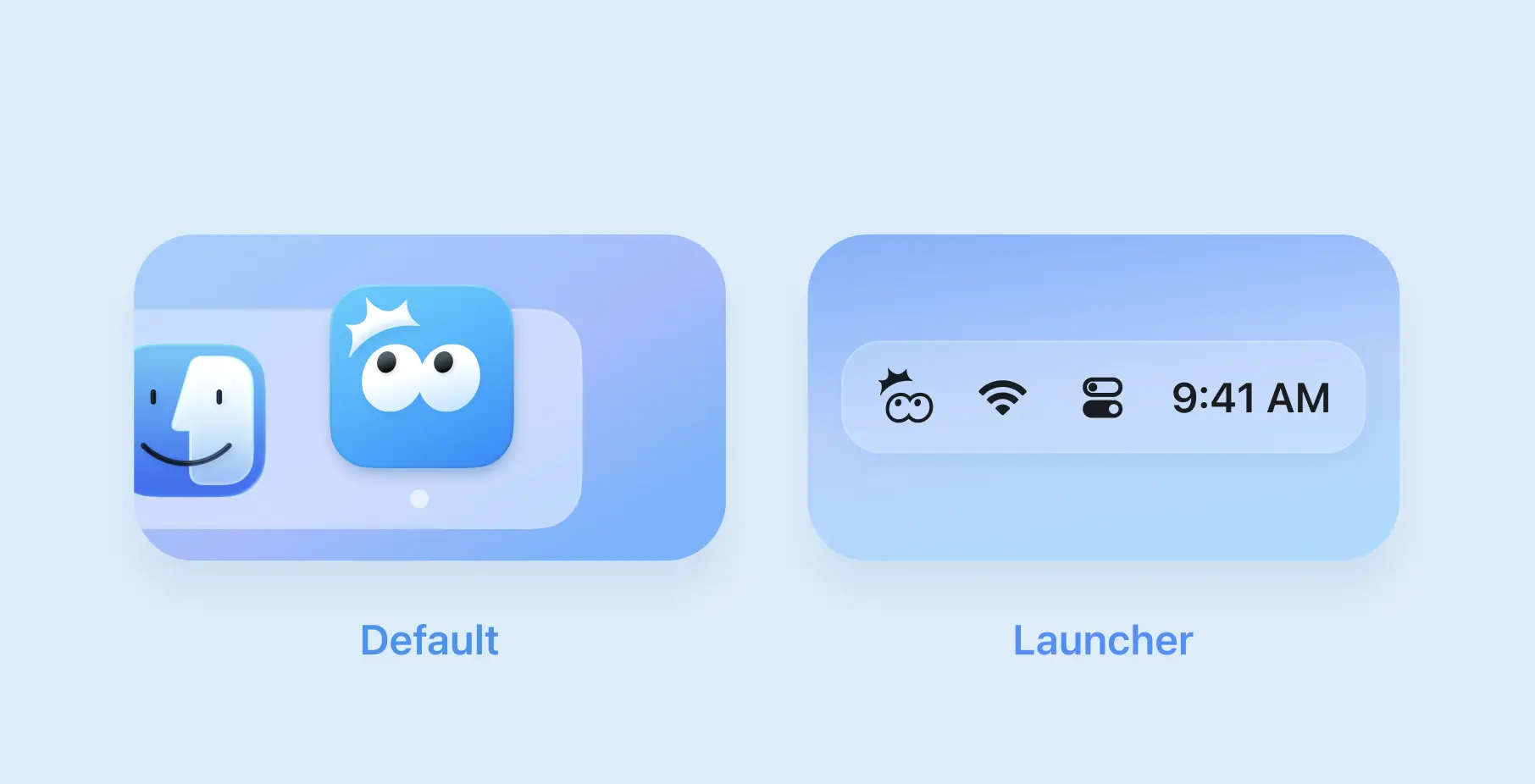
We've added a new setting called Launcher Mode to the Nani Translate macOS app.
If you typically use keyboard shortcuts to bring up Nani only when you need it, enabling this mode keeps the app unobtrusive while making it easy to show and hide.
What is Launcher Mode?
Unlike the standard behavior, this mode keeps the app waiting quietly in the background. Here's what changes:
-
Hidden from Dock: Nani won't appear in the Dock or in
Cmd+Tabapp switching, keeping your workspace clean. -
Lives in the Menu Bar: When you close the window, the app doesn't quit. It stays in the menu bar.
-
Auto-hide on Outside Click: After translating, simply click outside the window to dismiss it.
-
Appears on Active Display: When working with multiple displays, Launcher Mode shows the Nani window on whichever display your cursor is currently on.
If you always summon Nani with a shortcut, give this mode a try.
How to Enable
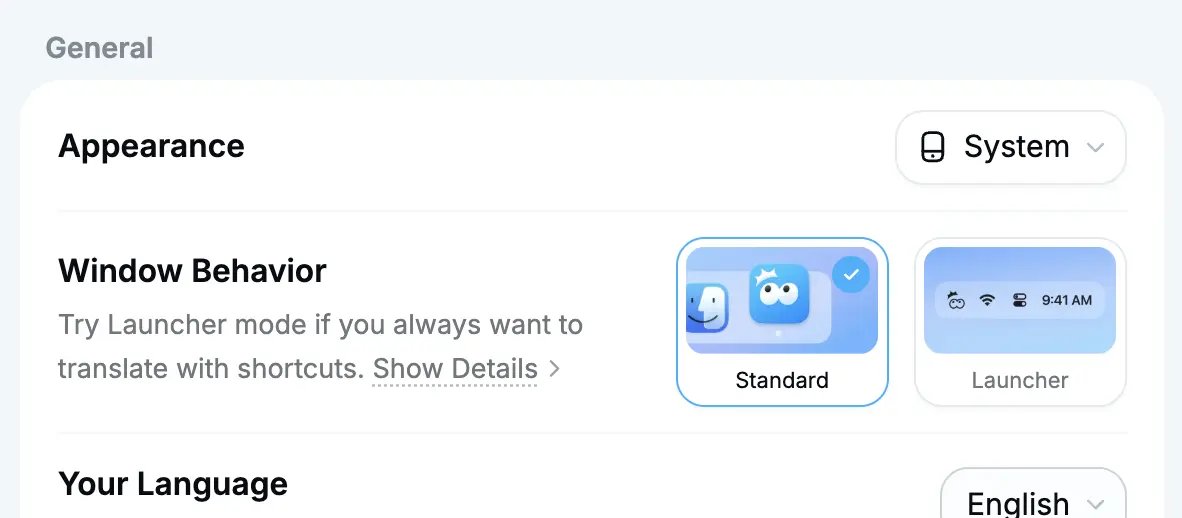
You can toggle this anytime from the "Window behavior" section in Settings.
About the Shortcut
The keyboard shortcut (default: Cmd + J) works regardless of whether Launcher Mode is on or off.
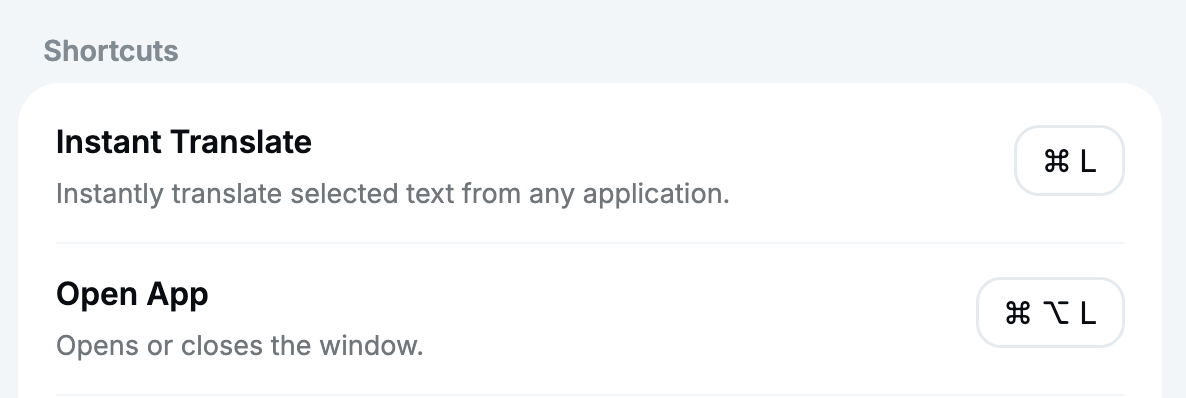
Since Launcher Mode makes it easy to accidentally dismiss the window, we recommend also setting an easy-to-reach shortcut for "Open App" in the settings.
If you accidentally close the window, you can use this shortcut to bring it back.